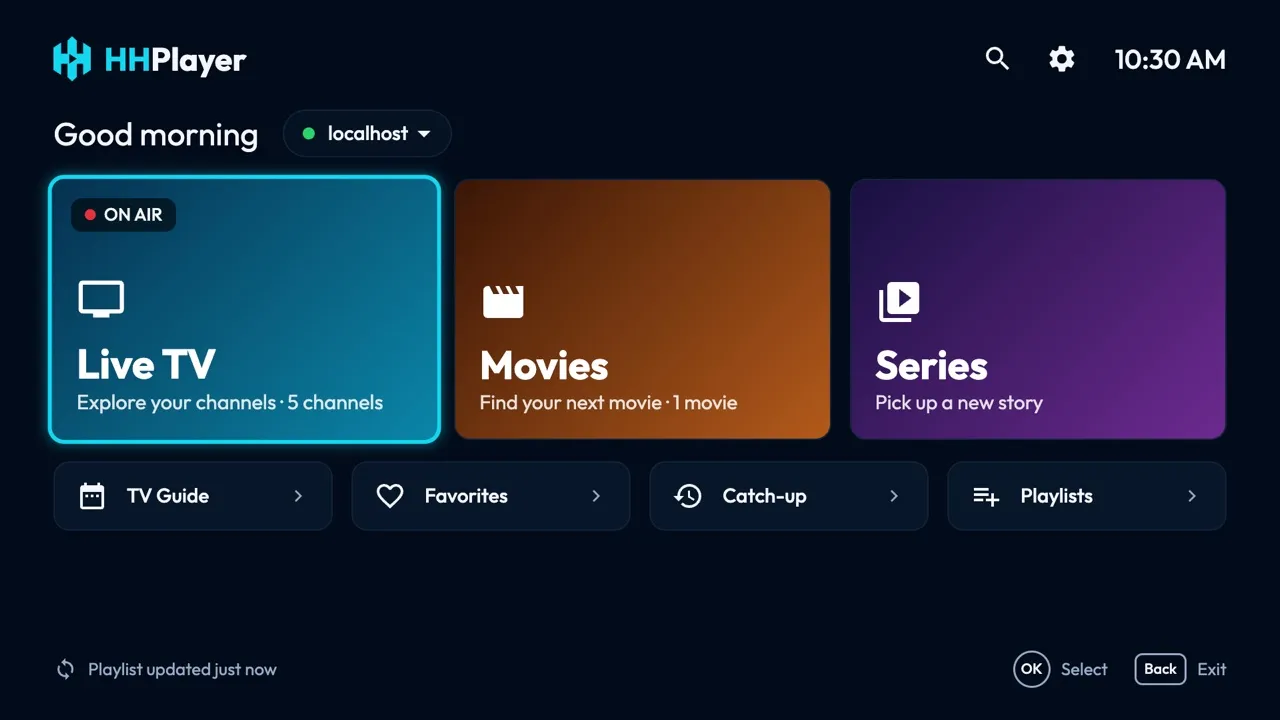
Requirements
- LG Smart TVs from 2018 (webOS 4.0 and later).
Install
HHPlayer is on its way to the LG Content Store. Once it is listed, search for HHPlayer in the store on your TV and install it; this page will link to it.
First launch
On first launch HHPlayer asks for a playlist. Choose M3U playlist and enter the link from your provider, or
Xtream Codes and enter the server, username and password. Live channels load first; movies, series and the
TV guide load the first time you open them. No content is included: to try it, add the
demo playlist https://hhplayer.app/demo.m3u.
Keys and remote
| Arrows | Move between items. |
|---|---|
| OK (wheel click) | Select. On a channel, the first OK previews it, the second goes fullscreen. |
| Back | Back. On Home, press twice to quit. |
| Red button | Add or remove a favorite. |
| Magic Remote pointer | Pointing highlights, clicking selects, the wheel scrolls lists. |
| CH + / CH −, numbers | Change channel, or type a channel number, in the player. |
Troubleshooting
- No red button on your remote: on Magic Remotes, the colour buttons are in the on-screen number pad (the 123 button).
- Nothing loads after adding a playlist: check the link or the Xtream login; Home shows the error with Retry.
- A channel doesn't play: check it works in your provider's own player; HHPlayer plays what the provider sends and includes no content.
Still stuck? Write to [email protected].